How to Stream High-Resolution Audio via Bluetooth Using LDAC in Compatible Cars
You can stream high-res audio in your car by enabling LDAC if both your phone and vehicle support it. Most Android phones from 2017 onward support LDAC, which transmits at up to 990 kbps-over three times faster than SBC. Pair your phone to your car, then set the Bluetooth codec to LDAC in Developer Options. Select “Quality Priority” mode for 24-bit/96 kHz audio. Use Tidal HiFi or Qobuz Studio Premier for lossless music that matches LDAC’s bandwidth. A strong signal within three feet guarantees stable playback. There’s more to optimizing your setup for the best sound quality.
Notable Insights
- Ensure both your car and phone support LDAC for high-resolution Bluetooth audio streaming.
- Enable LDAC in your Android device’s Bluetooth settings or Developer Options after pairing with the car.
- Select “Quality Priority” mode in LDAC settings to stream at 990 kbps with 24-bit/96 kHz resolution.
- Use a lossless music service like Tidal HiFi or Qobuz Studio Premier for high-res audio content.
- Keep your phone within three feet of the car’s receiver to maintain a stable LDAC connection.
Enable LDAC for High-Res Car Audio
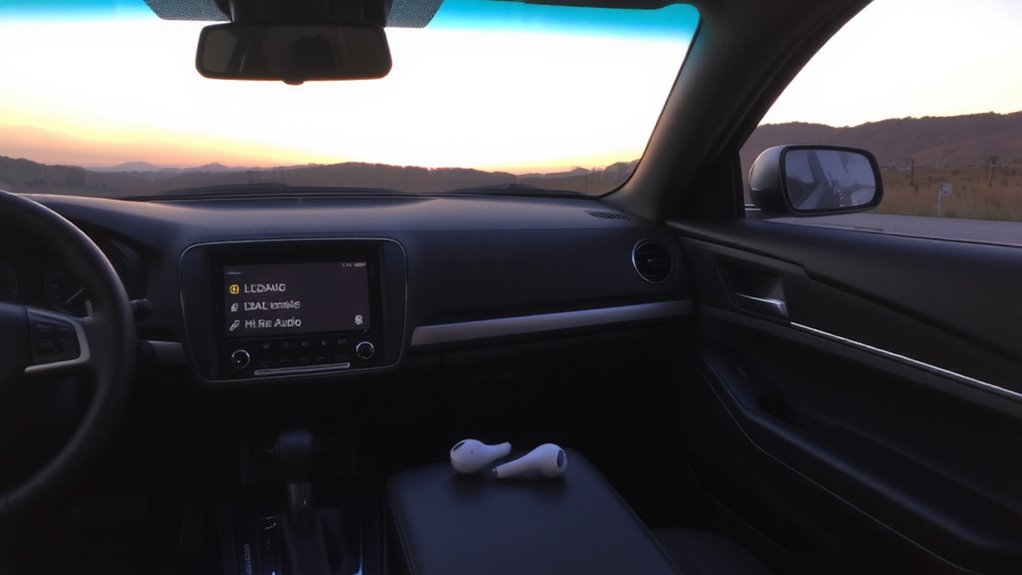
Achieving high-resolution audio in your car starts with accessing the right codec, and LDAC is your key. You’ll need to enable LDAC in your phone’s developer or Bluetooth audio settings. Once activated, it transmits up to 990 kbps, far exceeding standard SBC’s 328 kbps. This大幅提升 boosts audio quality by preserving more detail, especially in vocals and high-frequency instruments. LDAC supports 24-bit/96 kHz resolution, delivering near-lossless sound over Bluetooth. Wireless latency averages 30–100 ms, depending on transmission mode-Standard, Normal, or High Quality. Higher bitrates increase latency slightly but prioritize fidelity. You can select modes based on whether you value sound precision or real-time sync. Unlike older codecs, LDAC maintains stable connections within 10 meters. Enabling it doesn’t alter volume or equalization but activates your source’s true dynamic range. Make sure no interference disrupts the 2.4 GHz band. This step is essential before confirming device compatibility.
Check Your Car and Phone for LDAC Support
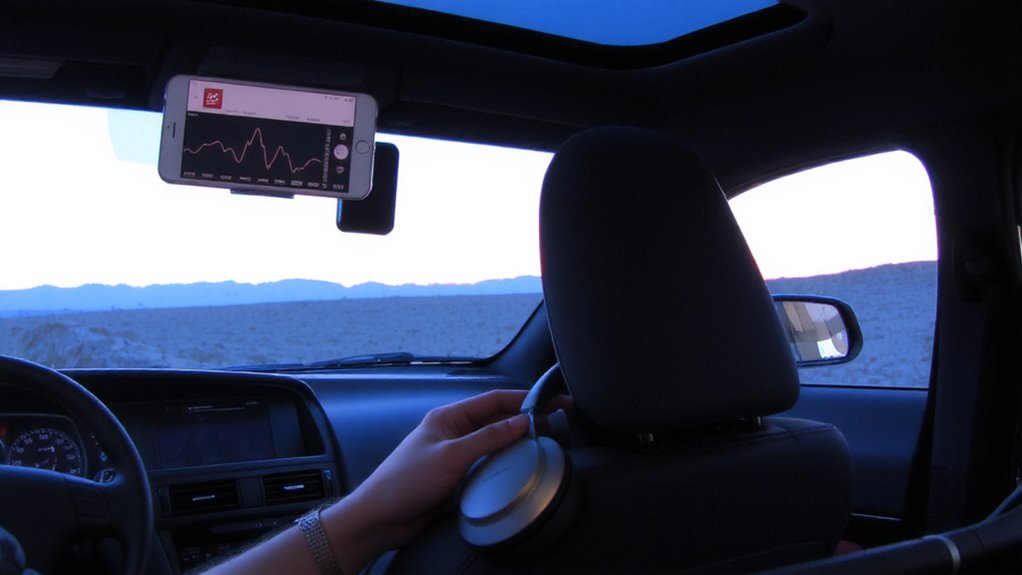
Wondering if your car and phone can handle high-resolution audio over Bluetooth? You’ll need LDAC support on both devices. LDAC is Sony’s Bluetooth codec that transmits 990 kbps, enabling near-CD-quality streaming. Check your phone’s specs: most mid-range and flagship Android devices from 2017 onward support LDAC, including Google Pixel and Samsung Galaxy models. Go to Developer Options to confirm LDAC availability. For your car, consult the infotainment manual-many 2020+ models with Android Auto support LDAC, especially from brands like Honda, Toyota, and Mercedes. Bluetooth compatibility isn’t guaranteed even with modern hardware. Some systems lack firmware support. Hardware limitations also matter: older Bluetooth chips only handle SBC or AAC, capping audio quality. Without LDAC in both devices, high-res streaming won’t work. Verify both ends before expecting better sound.
Turn On LDAC in Android Settings
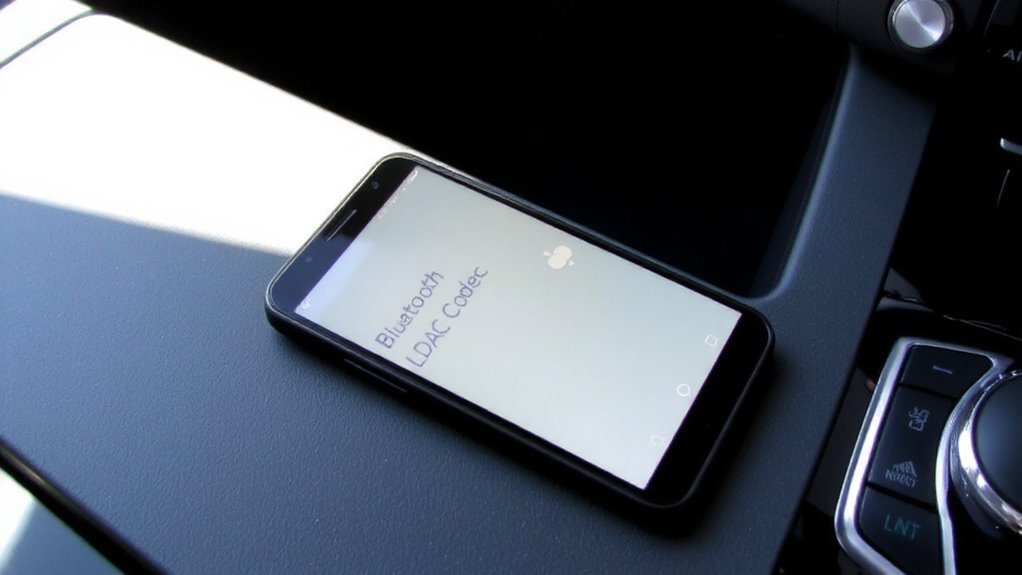
Now that you’ve confirmed your phone and car both support LDAC, it’s time to enable it in your Android settings. Open Settings, go to Connected devices, then Bluetooth. Tap on your car’s name once paired, and select Bluetooth codec. Choose LDAC from the list. This setting prioritizes audio quality by transmitting up to 990 kbps-over three times more data than standard SBC. LDAC supports 24-bit/96 kHz audio, delivering high-resolution sound wirelessly. While the increased bandwidth enhances audio quality, it may slightly impact Bluetooth stability in congested wireless environments. LDAC offers adaptive bitrate modes: Best Effort, Recommended, and Priority on Stability. Use Recommended for balanced performance. Avoid changing this later when connecting-it’s best set beforehand. Once enabled, your device maintains the codec unless interference forces a fallback. Proper configuration guarantees you get studio-quality audio without unnecessary rebuffering or dropouts.
Force LDAC When Connecting to Your Car
Even though your Android device may automatically select LDAC when available, it doesn’t always enforce it, especially in areas with high Bluetooth interference. To guarantee high-resolution audio, manually force LDAC in Developer Options under Bluetooth Audio Codec. Select “LDAC Codec” and choose “Quality Priority” for 990 kbps bitrate, which optimizes connection stability. This setting maintains full 24-bit/96kHz audio transmission, critical for true high-res playback. While LDAC increases audio latency slightly-typically 150–200ms-it remains acceptable for most in-car listening. Avoid “Connection Priority” or “Standard Priority” modes; they reduce bitrate to 330 kbps, degrading sound quality. Enabling LDAC enforcement guarantees consistent encoding, minimizing codec switching that disrupts playback. Strong Bluetooth signals support LDAC’s bandwidth demands, but physical obstructions or wireless congestion can weaken connection stability. For best results, keep your phone within three feet of the car’s receiver. This setup prioritizes audio fidelity without sacrificing reliable performance.
Play Lossless Music From Tidal or Qobuz
With LDAC properly configured to deliver high-resolution audio over Bluetooth, the next step is selecting a source that matches its capabilities-starting with lossless music from services like Tidal or Qobuz. You need to adjust Tidal quality settings to Master or HiFi to guarantee lossless FLAC streams at 16-bit/44.1 kHz or higher. Tidal’s MQA files unfold to 24-bit/192 kHz when decoded, but only if your device supports it. Otherwise, you get a folded version at 24-bit/48 kHz. Qobuz streaming features Studio Premier, delivering true 24-bit/192 kHz FLAC over compatible connections. It’s key to enable “High-Res” in the app settings. Both services require strong Bluetooth bandwidth. LDAC transmits up to 990 kbps, making it sufficient for CD-quality and select high-res content. You must maintain a stable connection to avoid fallbacks. Lossless streaming demands both the right settings and a capable ecosystem.
On a final note
You now have LDAC enabled for high-resolution audio in your car. LDAC supports up to 990 kbps at 24-bit/96 kHz, far exceeding standard Bluetooth’s 328 kbps. This means near-lossless playback from services like Tidal or Qobuz. Guarantee both your Android phone and car system support LDAC. Once paired, manually select LDAC in Bluetooth audio codec settings. You’ll get fuller soundstage and detail. Connection stability depends on signal strength, much like Wi-Fi. Enjoy precise, studio-quality audio on the go.