How to Use Bluetooth to Sync Vehicle Maintenance Reminders With Your Calendar
Your car must have Bluetooth 4.0+ and embedded telematics like SYNC 3 or OnStar to support maintenance alerts. Pair your phone via Bluetooth, using a PIN if prompted. Choose a compatible app-CarFax Mobile or MyCar Health-that syncs with your calendar and supports Bluetooth 5.0 for reliable data transfer. Enable auto alerts to monitor oil life, tire pressure, and brake wear, syncing diagnostics to your calendar within 30 seconds. Adjust tone, frequency, and sync delays in settings. If alerts fail, re-pair devices, update firmware, or reduce wireless interference. Further optimization tips follow.
Notable Insights
- Confirm your vehicle has Bluetooth 5.0+ and embedded telematics for reliable maintenance alerts.
- Pair your smartphone with your car’s infotainment system via Bluetooth in the wireless settings.
- Choose a compatible app like CarFax Mobile or MyCar Health to sync alerts with your calendar.
- Enable auto maintenance alerts in the app to receive real-time notifications from your car’s sensors.
- Customize alert tones, frequency, and calendar sync delays to avoid duplicates and interference.
Does Your Car Support Bluetooth Reminders?
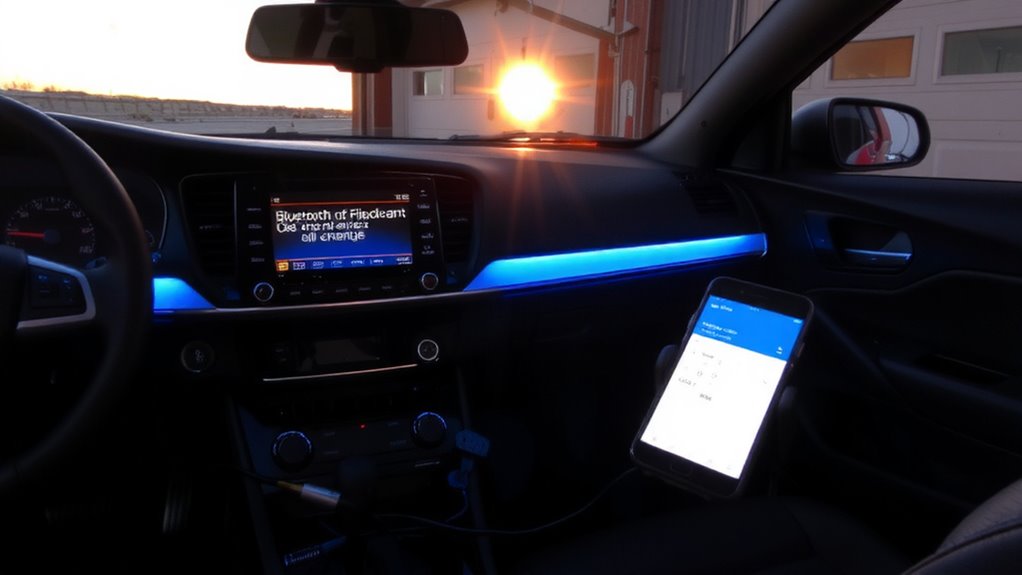
Wondering if your car can send maintenance alerts via Bluetooth? Not all vehicles support this feature, so check your vehicle compatibility first. Most models from 2016 onward with embedded telematics systems-like GM’s OnStar, Ford’s SYNC 3, or Toyota’s Entune-support Bluetooth maintenance alerts. These systems rely on specific Bluetooth versions; Bluetooth 4.0 or higher is required for stable, low-energy data transfer between your car and smartphone. Older Bluetooth versions lack the bandwidth and reliability for consistent notifications. Confirm your vehicle’s Bluetooth version in the owner’s manual or through the manufacturer’s app. Without compatible hardware, syncing reminders to your calendar won’t work. Vehicle compatibility isn’t just about brand-it’s about integrated software, firmware updates, and correct Bluetooth versions working together seamlessly.
Connect Your Phone to the Car via Bluetooth
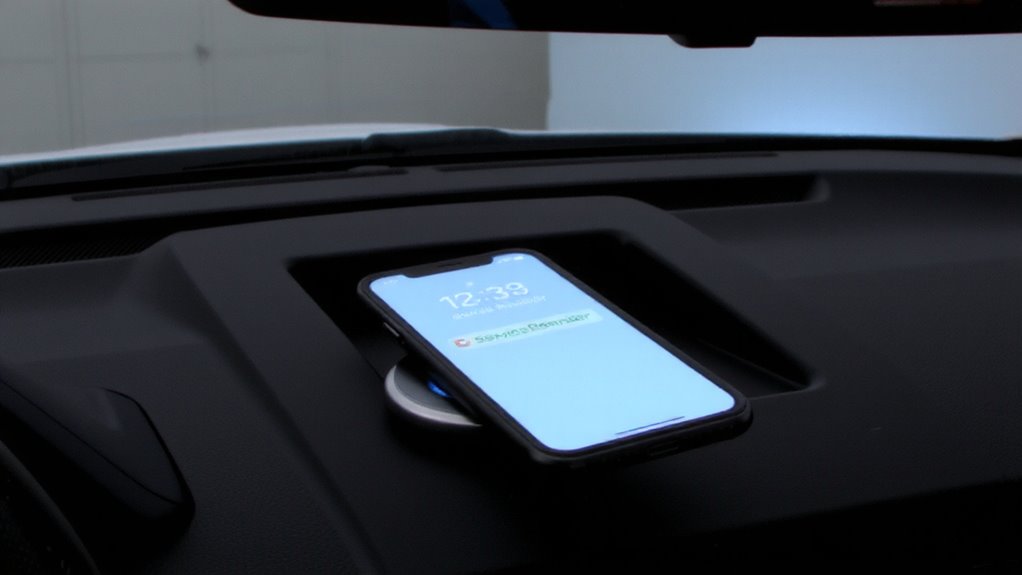
Start by enabling Bluetooth on both your smartphone and your vehicle’s infotainment system. Look for the Bluetooth settings menu in your car’s dashboard controls, typically found under “Settings” or “Wireless Connections.” Your phone should detect the car’s system within 30 feet. Select your vehicle’s name to begin the pairing process. You may need to enter a PIN displayed on the car’s screen-common codes are 0000 or 1234. Once paired, the connection supports hands-free calling and audio streaming via A2DP profile. Bluetooth 4.0 or higher guarantees stable 2.4 GHz frequency bandwidth with minimal interference. Audio streaming latency is typically under 120ms. Maintain pairing stability by keeping both devices updated and within range. A successful connection is required before syncing maintenance alerts.
Choose an App That Syncs Car Alerts to Your Calendar
A reliable app acts as the bridge between your vehicle’s diagnostics and your digital calendar. App compatibility determines whether your smartphone and car system communicate smoothly. Choose an app that supports both iOS and Android, with Bluetooth 5.0+ support for stable data transfer. Notification frequency can be adjusted to avoid overload-weekly summaries or real-time alerts based on system triggers.
| App Name | App Compatibility | Notification Frequency |
|---|---|---|
| CarFax Mobile | iOS, Android | Real-time, Weekly |
| AutoWatch Pro | Android only | Real-time |
| MyCar Health | iOS, Android | Customizable |
| DriveSync | iOS, Android | Daily, Weekly |
| FuelMinder+ | iOS only | Real-time |
Always verify OS version requirements and calendar integration capabilities before installation.
Turn On Auto Maintenance Alerts
Once your vehicle is paired via Bluetooth 5.0 or higher, you can enable auto maintenance alerts directly through the app settings. This feature automatically pulls diagnostic reports and logs them in your vehicle’s service history. The system monitors engine performance, oil life, tire pressure, and brake wear using onboard sensors. When thresholds are reached-like 15% oil life remaining-the app triggers a maintenance alert. These alerts sync with your smartphone calendar within 30 seconds of detection. Diagnostic reports include OBD-II data IDs (PIDs) such as fuel system status, readiness monitors, and trouble codes. Your service history stores timestamps, mileage, and repair notes for each entry. The app encrypts this data using AES-256 for privacy. Auto alerts reduce human error and guarantee timely servicing. You’ll get reminders for inspections, fluid changes, and part replacements based on real usage. No manual input is needed-detection is automatic and continuous.
Customize Bluetooth Maintenance Notifications
You’ve set up automatic maintenance alerts, so now it’s time to refine how and when you receive them. Customizing notification tones guarantees you hear alerts even in noisy environments. Most vehicle systems let you select tones from a library of 8–12 distinct audio signals, each ranging from 1,000 to 3,500 Hz for best human ear detection. Adjust the alert frequency to match your driving habits-daily commuters may prefer weekly reminders, while low-mileage drivers can extend intervals to every 14 days. Your phone’s Bluetooth settings allow precise control over message repetition, typically configurable from 1 to 5 alerts per event. Pair this with calendar sync delays of 0–30 minutes to prevent duplicated warnings. Use OEM-recommended sound levels above 65 dB to guarantee audibility. These technical adjustments guarantee timely, unobtrusive notifications tailored to your routine.
Fix Bluetooth Sync Failures Between Car and Phone
Even if your phone pairs successfully, sync failures between your vehicle’s onboard system and calendar can still occur due to protocol mismatches or signal interference. Signal interference from onboard electronics, such as infotainment systems or dash cams, can disrupt Bluetooth 4.0+ data transfer at 2.4 GHz. Move other wireless devices away from your phone to reduce noise. Verify both your car’s head unit and smartphone have the latest software updates-these often include Bluetooth stack improvements. Check your vehicle’s service portal for firmware version requirements. Re-pair the devices after updates to reset connections. Some vehicles require syncing within 30 seconds of ignition. Verify that calendar permissions are enabled in your phone’s Bluetooth settings. Use AAC codec compatibility if available. A failed sync typically retries every 15 minutes, but manual refresh may be needed. Reset network settings if problems persist.
On a final note
You now control your vehicle’s maintenance schedule with precision. Bluetooth sync lets your car’s OBD-II system transmit diagnostic data directly to your smartphone. Using apps like Torque or Car Maintenance, alerts transfer seamlessly to Google Calendar or Apple Calendar via API integration. Guarantee Bluetooth 4.0+ is enabled on both devices for stable pairing. Set recurring reminders for oil changes, tire rotations, and inspections at factory-specified intervals. This system reduces human error and extends vehicle lifespan through timely service.