Pair Multiple Bluetooth Devices to Your Car Infotainment System
Your car likely supports Bluetooth 2.1 or higher, enabling secure pairing with up to six devices. Start by enabling discoverable mode on your phone, then access the infotainment system’s Bluetooth menu and select “Add New Device.” Confirm the PIN or use SSP for a seamless connection. Once paired, the system stores each device’s MAC address and prioritizes connections based on settings. You can assign priority ranks-high, medium, or low-to control which device connects automatically. Only one device streams audio at a time via A2DP, so disable media on others to prevent interference. Clear old pairings periodically to avoid timeouts or conflicts, especially if using Bluetooth 4.2+, which has a 10-meter range hindered by obstructions. Rename devices before pairing for easy identification. With HFP 1.7 and AVRCP 1.6 active, you’ll get clear calls and media control. Proper configuration guarantees fast handoffs between drivers without re-pairing. Understanding how profile support and memory limits interact reveals smarter ways to manage connected devices.
Notable Insights
- Verify your car’s Bluetooth compatibility and supported profiles like HFP and AVRCP for optimal pairing performance.
- Pair each device by enabling discoverable mode and following the car’s Bluetooth setup menu to complete connection.
- Assign clear, unique names to devices before pairing to easily identify and manage multiple connections.
- Configure auto-connect priority settings in the infotainment system to control which device connects first.
- Prevent audio conflicts by ensuring only one device streams media at a time and clear old pairings when needed.
Check Your Car’s Bluetooth Compatibility
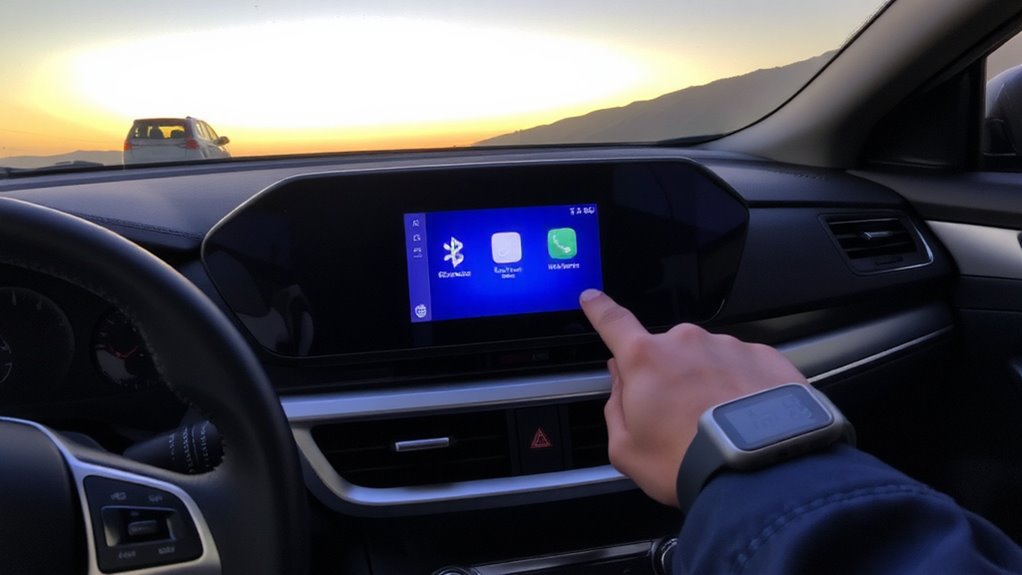
How do you know if your car can even use Bluetooth? Check your vehicle’s infotainment manual or specifications online. Most cars made after 2007 support Bluetooth, but versions vary. Your car likely uses Bluetooth 2.1, 3.0, or 4.0-each with different bandwidth and pairing capabilities. Newer Bluetooth standards allow faster connections and better audio streaming via A2DP profiles. Older systems may lack support for multiple devices or advanced codecs. Device limitations matter: some cars only pair one phone at a time or limit connections to hands-free calling, not audio streaming. Verify supported profiles like HFP 1.6 for calls and AVRCP for media control. If your smartphone uses Bluetooth 5.0, backward compatibility guarantees connection, but full feature access depends on your car’s firmware. Always confirm hardware capabilities before assuming seamless integration.
Pair Your First Device in 3 Steps
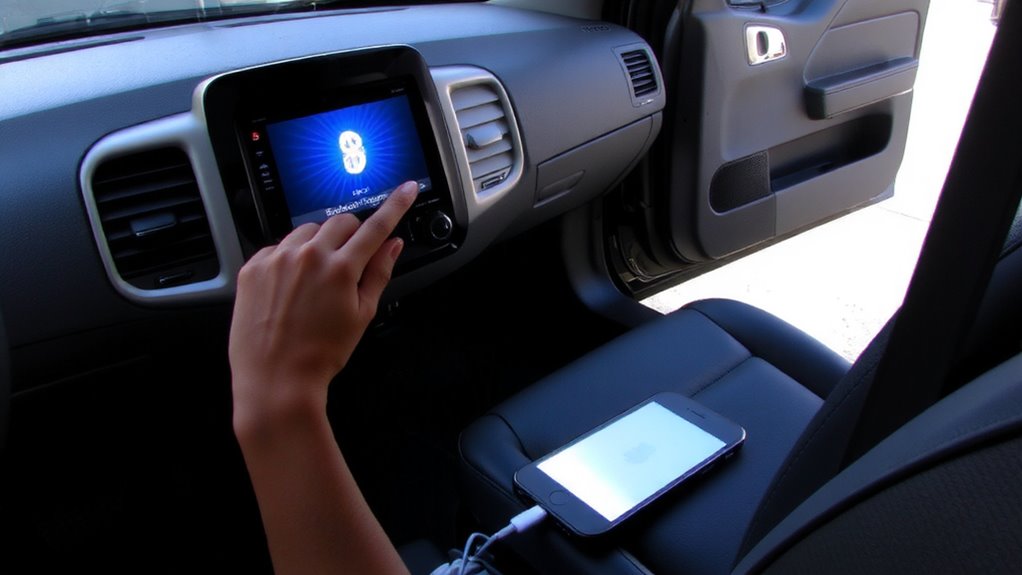
Now that you’ve confirmed your car supports Bluetooth, it’s time to connect your first device. Begin with device setup: turn on Bluetooth on your smartphone and guarantee it’s discoverable. This enables the infotainment system to detect your phone during initial pairing. Next, access your car’s Bluetooth menu-usually found under “Settings” or “Phone”-and select “Add New Device.” The system will scan for nearby devices; choose your phone from the list. Finally, confirm the match code displayed on both screens to complete pairing. Most systems use a 6-digit PIN, though some newer models use secure simple pairing (SSP). Once verified, your phone connects automatically when in range. This initial pairing stores your device’s MAC address and profiles like Hands-Free Profile (HFP 1.7) and Audio/Video Remote Control Profile (AVRCP 1.6), enabling call and media control.
Save Multiple Bluetooth Devices to Your Car
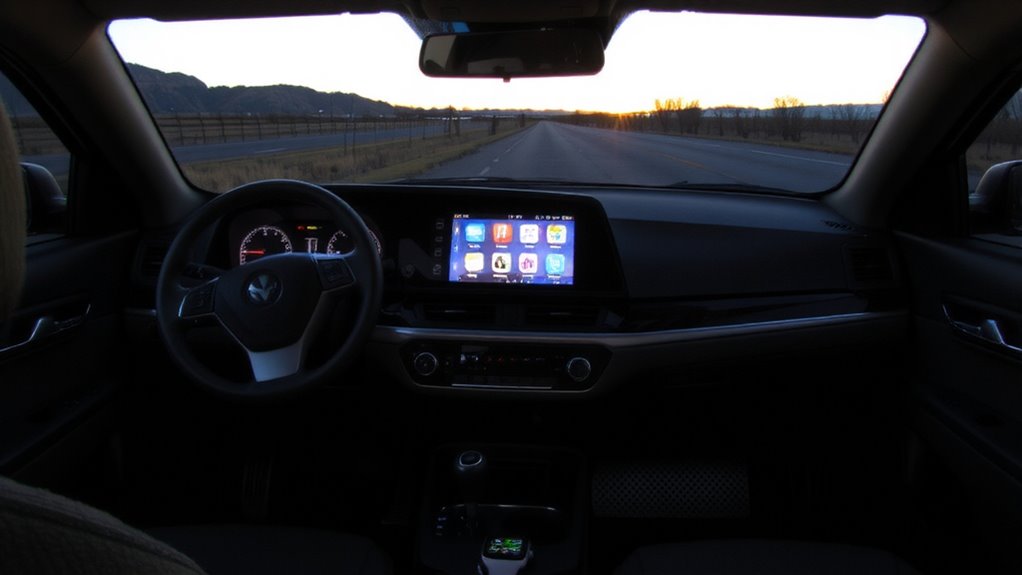
While your car can remember more than one phone, it usually connects to only one at a time. Most systems support up to six paired devices, but exact Bluetooth memory limits vary by manufacturer and model year. Check your infotainment manual for specific capacity details-some older systems may store only three. To avoid confusion, use clear device naming conventions like “Alex’s iPhone” or “Work Galaxy S23” during pairing. Generic names like “Phone” or “Android” make selection harder and increase connection errors. Rename devices in your phone’s Bluetooth settings before pairing. The car saves each device’s MAC address and profile data, including call and audio settings. Saved devices remain in memory until manually deleted or overwritten when exceeding storage limits. Proper naming guarantees fast recognition and reliable reconnection, streamlining multi-user shifts without re-pairing.
Set Your Default Auto-Connect Device
| Device Name | Connection Priority | Auto Pairing Enabled |
|---|---|---|
| Phone A | High | Yes |
| Phone B | Medium | No |
| Tablet | Low | No |
Adjust rankings manually so your preferred device connects first. Connection priority overrides proximity. This prevents unwanted devices from linking at startup. Use this feature to maintain control. Auto pairing only works if your device is powered and discoverable. For optimal performance, choose a Bluetooth car adapter with reliable multi-device pairing capabilities.
Fix Common Multi-Device Bluetooth Issues
You’ve set your default auto-connect device, but multiple Bluetooth connections can still cause unexpected behavior. Audio interference often occurs when two devices transmit media simultaneously. Your car’s infotainment system supports only one active audio source at a time; overlapping signals create distorted sound or dropouts. To prevent this, disable media audio on secondary devices while keeping calls active. Connection timeouts typically happen after 30 seconds of inactivity or signal loss. Most systems use Bluetooth 4.2 or higher, which has a standard range of 33 feet (10 meters). Obstructions like metal or electronics reduce effective range. Make certain devices stay within line of sight and update firmware to maintain stable links. Clear pairing history every few months to avoid address conflicts. Restart the infotainment system if connections fail repeatedly. These steps minimize disruptions without requiring re-pairing.
Switch Between Paired Devices in Seconds
If your car supports multiple Bluetooth pairings, switching between devices takes just a few taps-no re-pairing required. Device prioritization lets your system remember your phone, tablet, or watch in order of use. When you enter the car, the infotainment unit auto-connects to the highest-ranked active device. This reduces connection delays, typically cutting sync time to under three seconds. Most modern systems use Bluetooth 5.0 or higher, which supports faster handshakes and stable multi-device channels. You can manually override prioritization in the settings menu, selecting which device streams audio or takes calls. Some vehicles allow up to six paired devices, though only one can play media at a time. Switching is seamless: tap the Bluetooth icon, choose your device, and resume playback in under five seconds. This prioritized switching guarantees efficiency, especially in shared vehicles where multiple users rely on quick, reliable connections.
On a final note
Your car’s Bluetooth system supports up to eight paired devices, retaining connections for seamless switching. Most systems remember the last connected device and auto-reconnect within 10 seconds of ignition. Use your infotainment settings to manually select active devices or set a primary connection. Multipoint pairing allows phone and tablet audio streaming simultaneously. Maintain signal stability by keeping devices within 3 feet of the dashboard receiver.