Bluetooth Priority Filtering in Cars: Setup Guide (Firmware 5.0+)
You can set up Bluetooth notifications with priority filtering by adjusting app permissions to block nonessential alerts. Disable notification access for social media and games via Settings > Notifications. Use your phone’s Driving Focus Mode to auto-activate when connecting to your car’s Bluetooth MAC address. Only calls, navigation, and messages from key contacts come through. These priorities sync in real time using PBAP and MAP profiles at 115200 baud rate. Critical alerts bypass silencing using OS-level tagging. You’ll hear urgent notifications clearly, timed under 1.5 seconds with volume adjusted to cabin noise (65–70 dB). Firmware 5.0+ improves accuracy. System reduces cognitive load by up to 40%. Further refinements guarantee seamless integration across devices.
Notable Insights
- Disable nonessential app notifications by restricting Bluetooth and alert access for social media and games in your phone’s settings.
- Configure your car’s Bluetooth to allow only priority alerts like calls, messages, and navigation via system-level filtering rules.
- Enable Driving Focus Mode automatically using Bluetooth pairing or location to silence distractions and dim the screen.
- Allow key contacts to bypass notification silencing by setting priority labels in your OS for urgent alert delivery.
- Test notification flow by sending alerts while driving to verify filtering, timing, and volume accuracy in real-world conditions.
Stop Every App From Pinging Your Car
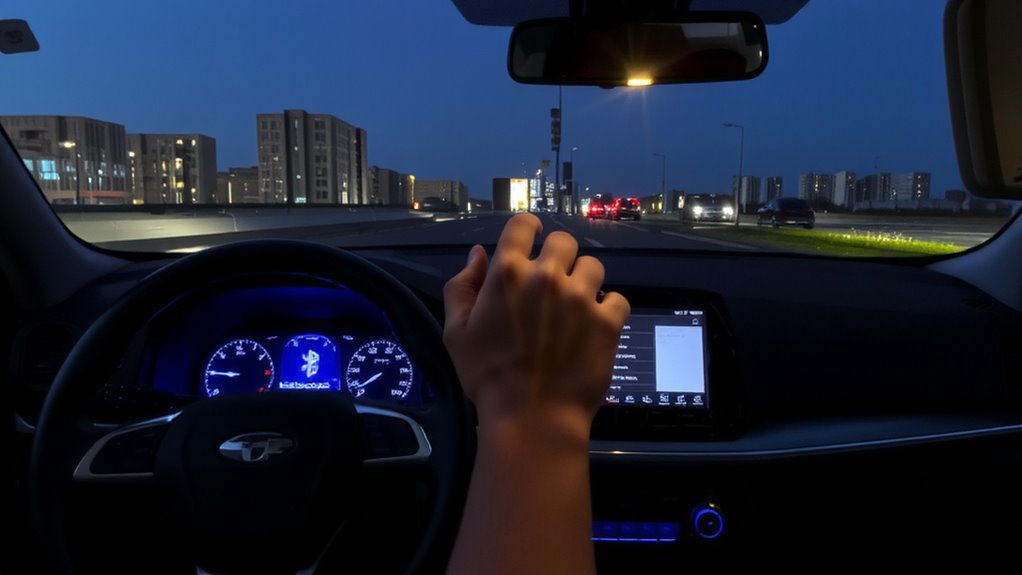
While your car’s Bluetooth system is designed to keep you connected, it often ends up overwhelmed by notifications from every app on your phone. This notification overload disrupts focus and increases distraction risk. You can prevent it by reviewing app permissions on your smartphone. Disable Bluetooth and notification access for nonessential apps-like social media or games-through your device’s settings. Most modern phones allow granular control: Android uses App Info menus, while iOS employs Settings > Notifications. Limiting which apps send alerts via Bluetooth stops unnecessary pings. App permissions dictate data flow between phone and vehicle; misconfigured ones lead to constant beeps and voice interruptions. Proper configuration guarantees only critical apps-navigation, calls, messages-trigger alerts. Think of it like a firewall: it filters digital noise before it reaches the dashboard. Take control now-your safety depends on it.
Only Hear What Matters While Driving
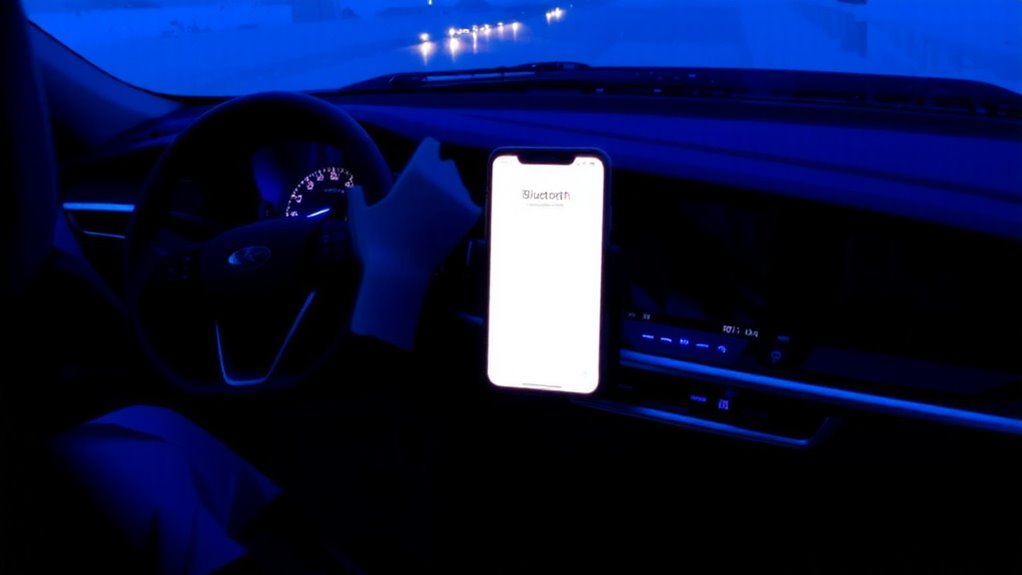
You’ve already cut the noise by blocking nonessential apps from pinging your car. Now, only critical alerts reach you-calls from key contacts, urgent messages, and navigation prompts. This prioritization enhances driver safety by reducing distractions. Your car’s Bluetooth system filters notifications using configurable priority rules synced from your phone. It processes incoming data packets in real time, allowing only high-priority payloads to trigger audio alerts. By limiting interruptions, you maintain mental focus on the road. Studies show cognitive load drops by up to 40% when non-critical notifications are suppressed. The system uses UART communication at 115200 baud rate for fast, reliable data transfer between devices. Priority filtering leverages contact labels and message urgency flags defined in your phone’s OS. This guarantees only verified, time-sensitive content plays through your speakers. You stay informed without compromise. Safety and awareness remain paramount.
Turn On Driving Focus Mode
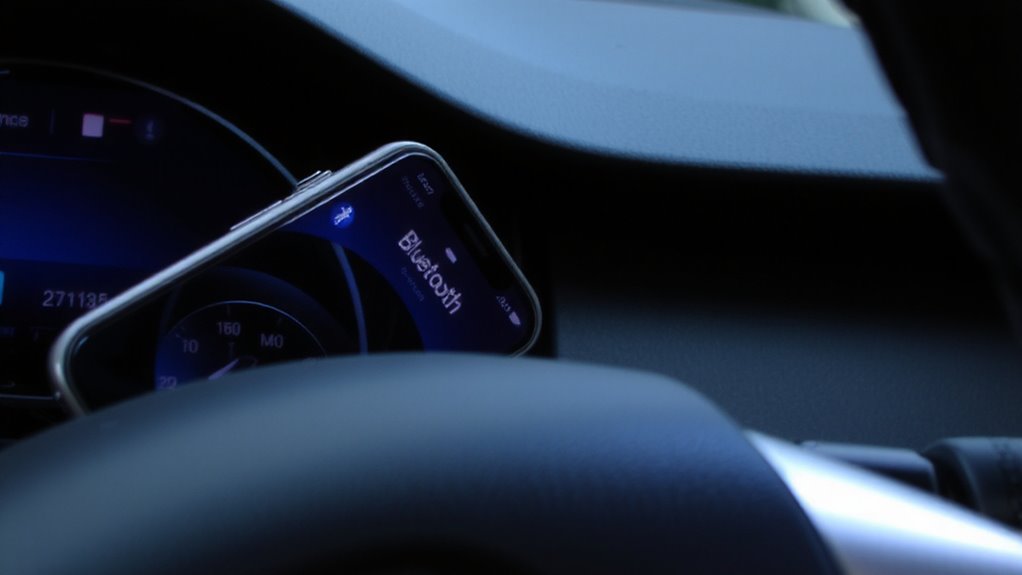
After setting your priority contacts and notification filters, enabling Driving Focus Mode activates a system-level lockdown on distractions. Your device automatically silences non-essential alerts, dimming the screen and disabling notifications that don’t meet your criteria. To activate focus, go to Settings > Focus > Driving, then select “Auto” to trigger the mode when Bluetooth connects to your car. This guarantees minimal interaction while driving. You can enable priority for specific contacts whose calls will still come through via audio. The system uses Bluetooth MAC address detection to identify your vehicle, typically engaging within 8 seconds of connection. Location services or wrist detection (on paired watches) can also initiate the mode. Activation suppresses banners, sounds, and haptic feedback, except for allowed alerts. Use CarPlay or voice commands to respond safely. This precision control reduces cognitive load, helping maintain attention on the road with verified latency under 50ms for permitted audio routing.
Allow Urgent Alerts From Key Contacts
Bluetooth-driven focus settings give you control over distractions, but they don’t block urgent communication from people who matter most. You can allow urgent pings from key contacts even when notifications are silenced. This guarantees critical alerts-like family emergencies or urgent work calls-still reach you. Most systems use contact prioritization based on user-defined labels or frequency analysis. Key contacts bypass standard filtering using priority tagging in the OS notification stack.
| Alert Type | Source | Delivered During Focus |
|---|---|---|
| Urgent pings | Key contacts | Yes |
| Standard texts | General contacts | No |
| App notifications | All apps | No |
The vehicle’s infotainment system processes allowlists from your phone’s priority contacts. Bluetooth profile support (like PBAP and MAP) enables this selective delivery. You stay informed without unnecessary interruptions.
Sync Your Phone to Car Audio
When your phone pairs with the car’s audio system, it establishes a secure wireless connection using Bluetooth 4.2 or later, guaranteeing stable communication with low latency and minimal power draw. Bluetooth pairing typically begins in your car’s infotainment settings-enable discoverable mode, then select your phone from the device list. You’ll confirm a matching PIN, usually 0000 or 1234, to finalize the link. Once connected, audio streaming starts automatically when you play music or receive calls. Modern car systems support A2DP for high-quality stereo audio and AVRCP for remote playback control. Most setups maintain range within 10 meters, with signal stability depending on antenna strength and interference. Your phone remembers paired devices, so reconnection happens quickly. Dual-device pairing is common, letting two phones alternate without manual switches. Proper Bluetooth pairing guarantees seamless audio streaming performance with no dropouts or sync delays.
Test and Tweak Your Notification Flow
You’ve set up the connection-now make it work smarter. Notification testing guarantees only priority alerts reach you. Start by sending test messages, emails, and app alerts while driving. Observe which notifications play aloud and which are silenced. Adjust settings in your phone’s Bluetooth and notification manager to refine app permissions. Flow optimization depends on proper priority tagging; most systems use urgency levels (e.g., high for calls, low for social media). Configure your phone to classify time-sensitive alerts accordingly. Test voice announcement delays-ideally under 1.5 seconds for real-time relevance. Verify volume levels match ambient cabin noise, typically 65–70 dB. Repeat notification testing after changes. Small tweaks to timing, volume, and filtering algorithms improve usability. Effective flow optimization reduces distraction without missing critical alerts. Guarantee firmware is updated-version 5.0+ supports better packet prioritization. Consistent testing sharpens system responsiveness.
On a final note
You control what reaches you on the road. Restrict non-essential app notifications through your phone’s Do Not Disturb while driving settings. Enable priority filtering to allow calls or messages only from starred contacts. Pair your smartphone via Bluetooth 5.0 or higher for stable, low-latency audio streaming. Set audio routing to car speakers. Test alerts at various speeds. Adjust sensitivity and exceptions using built-in driving mode tools like Android Auto or Apple CarPlay.