How to Adjust Frame Rate Settings on Your Dash Cam for Smooth Slow-Motion Playback
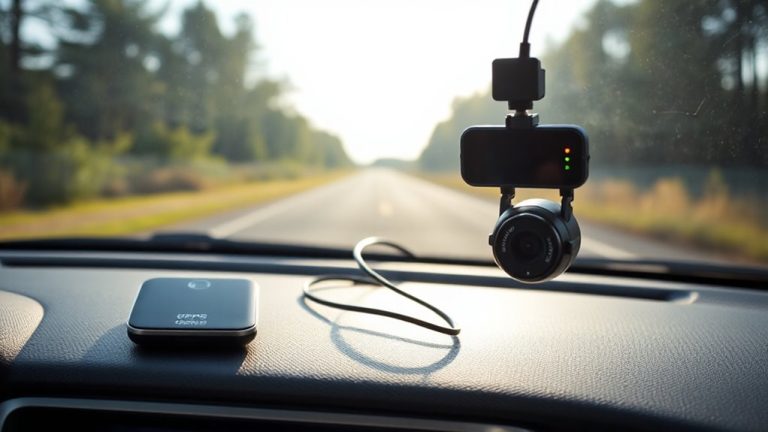
Set your dash cam to at least 60fps for usable slow motion, but use 1080p at 120fps for clear, high-quality playback of fast-moving events. Access frame rate settings through the video or recording menu on your device. Higher frame rates capture smoother motion but increase file sizes and reduce available recording time. At 120fps, expect shorter clip durations and possible compression tradeoffs. Guarantee good lighting, since faster frame rates reduce per-frame exposure. Not all models support 1080p120-check your camera’s specs for compatible resolution and frame rate combinations. Best performance depends on sensor and processor capabilities, which vary by model. Fine-tuning these settings reveals how your dash cam handles real-world detail under speed and stress.
Notable Insights
- Access frame rate settings through the dash cam’s setup menu under video or recording options.
- Select at least 60fps for smooth slow-motion playback, with 120fps ideal for high-speed events.
- Use 1080p resolution at 120fps for the best slow-motion quality without excessive file size.
- Be aware that higher frame rates reduce available recording time due to larger file sizes.
- Test slow-motion performance by recording fast-moving vehicles and checking for motion blur during playback.
How to Change Dash Cam Frame Rate Settings
Most dash cams let you change the frame rate through a simple menu setting, giving you control over how smoothly your video captures motion. You access frame rate options via the device’s setup menu, usually found in recording or video settings. These options typically range from 30fps to 60fps, sometimes up to 120fps for slow-motion capability. Higher frame rates capture more detail during fast movement but require more storage space. Your dash cam’s video resolution settings-like 1080p, 1440p, or 4K-work alongside frame rate options to determine overall video quality. For example, recording at 4K@30fps captures sharp detail, while 1080p@60fps provides smoother motion at lower resolution. You can’t always use the highest resolution and frame rate simultaneously due to processing limits. Always consult your model’s specifications to match compatible frame rate options with resolution settings for reliable performance.
Best Frame Rate Settings for Dash Cam Slow Motion
For smooth slow-motion playback, aim for at least 60 frames per second (fps) or higher. Higher frame rates capture more detail during fast action, making playback appear fluid and clear. You’ll get the best results with 1080p at 60 fps or 4K at 30 fps as a baseline. Advanced motion smoothing techniques work better when more frames are available. However, consider frame rate tradeoffs like increased file size and storage demands.
| Resolution | Frame Rate | Ideal Use Case |
|---|---|---|
| 1080p | 60 fps | Daily driving, good light |
| 1440p | 60 fps | Sharper detail, larger field |
| 4K | 30 fps | Standard playback clarity |
| 1080p | 120 fps | High-speed events, slow-mo |
What You Lose When You Increase Frame Rate
Boosting your dash cam’s frame rate improves slow-motion quality, but it comes with tradeoffs that affect overall performance and usability. Higher frame rates, like 60 or 120 fps, consume considerably more storage space. A 1-minute clip at 1080p60 uses nearly twice the space of one at 1080p30. This reduces recording time on your memory card and may require more frequent file management. You might also experience a drop in image quality. Many dash cams reduce bitrates or apply heavier compression at higher frame rates, resulting in softer details, smudged textures, and increased motion blur in low light. Some models lower resolution when running at max frame rates, further degrading clarity. Sensor readout speeds and processing power become limiting factors. Think of it like increasing shutter speed-more data is captured, but each frame gets less light and processing attention.
How to Test Your Dash Cam’s Slow-Motion Quality
How can you tell if your dash cam delivers usable slow-motion footage? Test it in real driving conditions with fast-moving subjects. Record a vehicle passing at 30+ mph while set to your desired high frame rate. Play back in slow motion and check for frame alignment-each frame should align smoothly, with no jitter or skipped visuals. Poor frame alignment disrupts motion continuity. Look closely for motion blur; even at 60fps or 120fps, low light or fast motion can smear details. A sharp slow-motion clip preserves edges and text, like license plates. Use 1080p resolution or higher for better clarity. Compare clips side by side at 30fps and 120fps to spot differences. Reliable slow-motion needs precise synchronization between shutter speed, lighting, and frame capture rate. Avoid relying on digital interpolation, which adds fake frames and increases blur.
Why Higher Frame Rates Improve Slow-Motion Clarity
Motion smoothness in slow-motion playback hinges on frame rate, and higher values make a clear difference. When your dash cam records at 60 or 120 frames per second (fps), you capture more image data over time. This increased temporal precision means each moment is documented with finer detail, reducing motion blur between frames. During slow-motion playback, the video retains clarity because there’s less distance for motion interpolation to fill. Lower frame rates, like 30 fps, force the system to guess movement between frames, creating unnatural jumps or stutter. At 120 fps, you get four times more visual reference points than at 30 fps. That density allows smooth slowdowns-up to 4x slower-without sacrificing detail. High frame rates preserve fast-moving object trajectories, such as a vehicle swerving or debris flying. You don’t just see motion-you analyze it.
On a final note
You now control how your dash cam captures motion. Adjust frame rate settings to 60 or 120 fps for usable slow-motion. Higher frame rates improve temporal resolution, making fast events clearer. You trade storage space and low-light performance-each 120 fps minute uses up to 1.5 GB. Test clips at intersections or during lane changes. Playback in 0.5x speed reveals blur at 30 fps. Prioritize frame rate when documenting high-speed risk.