How to Pair a Bluetooth-Enabled Fuel Tracker for Real-Time MPG Monitoring
Charge your fuel tracker fully-indicated by a solid green LED-then power it on for 3 seconds to enter pairing mode, shown by a flashing blue light. Make sure your phone has Bluetooth 4.0 or higher and is within 30 feet. Open the companion app, start scanning, and select your device by model name. Use PIN 0000 or 1234 if prompted. Successful pairing brings an app alert or status change. You’ll then see real-time MPG and engine data streamed from your OBD-II port. There’s more to optimizing your setup for peak accuracy.
Notable Insights
- Charge the fuel tracker fully and power it on to activate pairing mode with a flashing blue light.
- Ensure your vehicle has OBD-II compatibility, required for real-time fuel and engine data access.
- Download the companion app on a Bluetooth 4.0+ device with sufficient storage and complete user registration.
- Plug the tracker into the OBD-II port under the dashboard near the steering column.
- Pair the device via the app by selecting the tracker model and entering the default PIN if prompted.
Get Your Bluetooth Fuel Tracker Ready
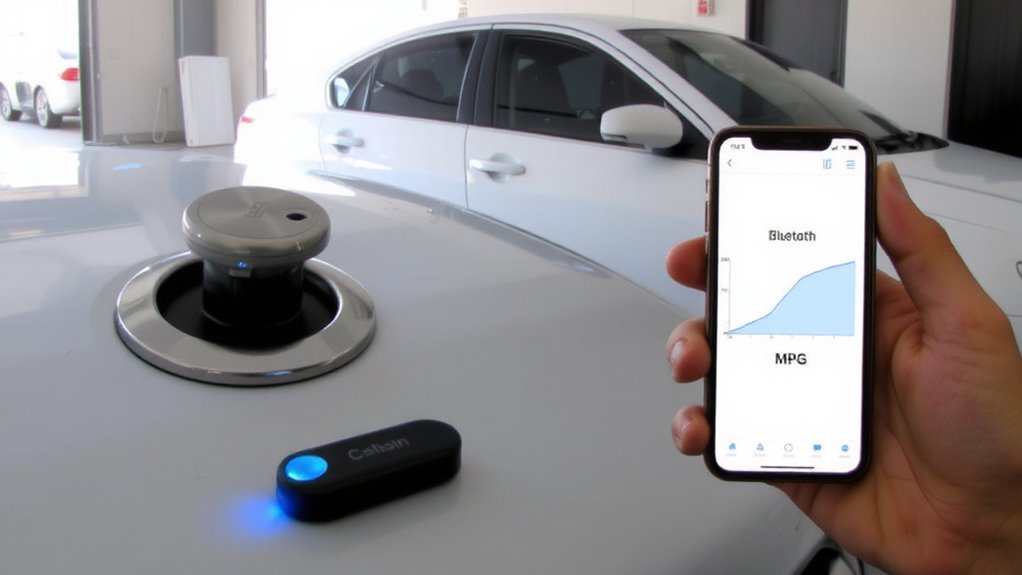
Start by inspecting your Bluetooth-enabled fuel tracker for physical damage or debris, especially around the charging port and sensors-any obstruction can interfere with connectivity or accuracy. Clean the charging port gently with a dry, soft brush if needed. Next, guarantee proper device charging; connect the tracker to the included micro-USB or magnetic charger. A full charge typically takes 2–3 hours and delivers up to 14 days of battery life, depending on usage. Verify the LED indicator turns solid green, signaling a complete charge. Power the device on by pressing and holding the side button for 3 seconds. You’ll see a flashing blue light, indicating it’s in pairing mode-this is essential for Bluetooth setup. Confirm your smartphone’s Bluetooth is active and within 30 feet. The device operates on Bluetooth 4.2 or higher, guaranteeing stable, low-energy connections during fuel tracking.
Check If Your Car Supports OBD-II
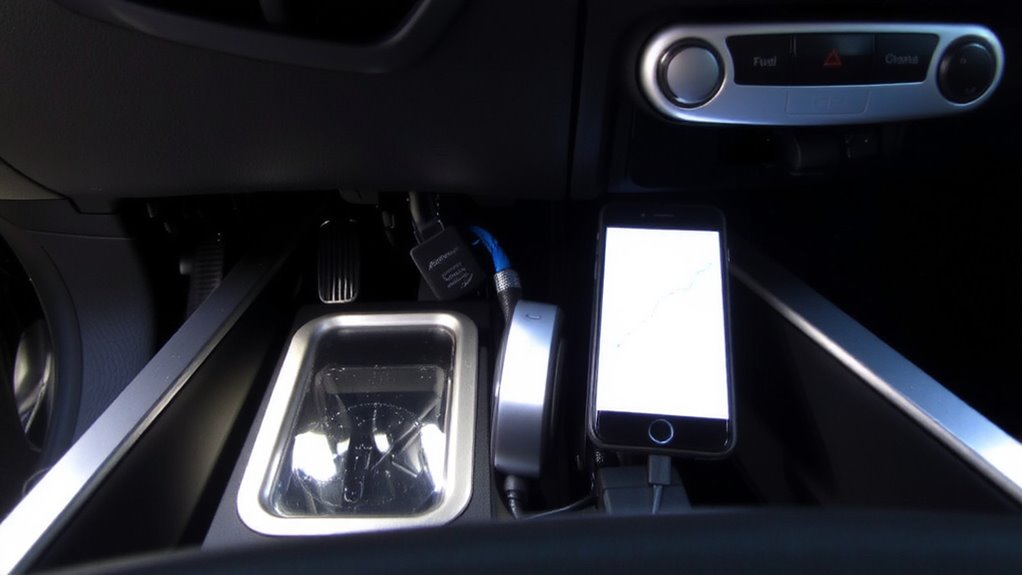
Your Bluetooth fuel tracker won’t connect directly to your car’s engine data unless your vehicle supports OBD-II, the standard interface for automotive diagnostics. OBD II compatibility is required for real-time access to fuel efficiency and engine performance metrics. Nearly all cars and light trucks made after 1996 in the U.S. are mandated to include a standardized 16-pin OBD-II port. This port enables two-way communication with your vehicle’s onboard computer. The OBD-II system uses protocols like CAN, ISO 15765, and J1850 to transmit data. Without this compatibility, the fuel tracker can’t retrieve essential vehicle diagnostics. Locate the port under the dashboard near the steering column-typically within 2 feet of the driver. Confirm your car’s compliance by checking the vehicle’s manual or examining the port directly. If present and functional, your car supports the data exchange needed for accurate MPG monitoring.
Install the Fuel Tracker’s App on Your Phone
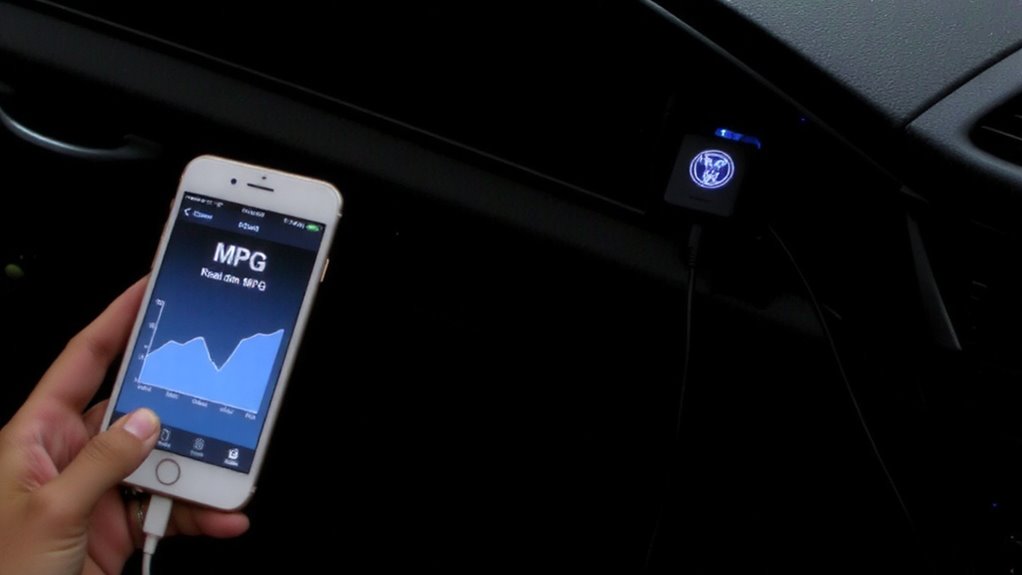
A reliable connection between your fuel tracker and smartphone hinges on installing the correct companion app. Without it, real-time MPG monitoring isn’t possible. Begin app setup by downloading the manufacturer’s application from the App Store (iOS 12+) or Google Play (Android 8.0+). The app optimizes Bluetooth 4.0 (or higher) connectivity for stable data transmission. Complete user registration to access full features, including trip history and fuel efficiency reports. Registration ties your device ID to your account for seamless synchronization across devices.
| Feature | Requirement |
|---|---|
| OS Compatibility | iOS 12+, Android 8.0+ |
| Bluetooth Version | 4.0 or higher |
| Storage Space | 150 MB available |
You’ll receive firmware alerts and calibration updates post-registration.
Find Your Car’s OBD-II Port
The OBD-II port is where your fuel tracker establishes a direct connection to your vehicle’s onboard diagnostics system, enabling accurate fuel and engine performance data collection. You’ll typically find the OBD II location beneath the dashboard, within reach of the driver’s seat, and near the steering column. Federal regulations require this placement for all cars and light trucks made after 1996, guaranteeing consistent port accessibility. The connector is a 16-pin trapezoidal socket, standardized across manufacturers. Most ports sit within 18 inches of the steering wheel. If obscured, check behind trim panels or near the center console. Guarantee the area is dry and free of debris before insertion. Access shouldn’t require tools-direct reach is essential for reliable connectivity. Proper port accessibility guarantees uninterrupted data transmission and accurate real-time MPG monitoring. Some advanced scan tools also support ECU programming capabilities for deeper vehicle diagnostics and performance tuning.
Pair the Fuel Tracker to Your Phone via Bluetooth
How do you make your fuel tracker actually work with your phone? You start by enabling Bluetooth setup on your smartphone. Make sure your device’s Bluetooth is active and ready to detect new peripherals. Launch the companion app for your fuel tracker-most are available on iOS and Android. The app initiates device syncing by scanning nearby Bluetooth signals. Look for your tracker’s model number in the list-common identifiers include “OBD2-FuelSync” or similar. Select it to begin pairing. Use the default PIN if prompted, usually 0000 or 1234. Once connected, the app confirms successful syncing with a notification or status light. A stable Bluetooth 4.0 (BLE) connection guarantees minimal power drain and reliable data transfer. Successful pairing typically takes under 30 seconds. Do not close the app during syncing-this may interrupt the handshake protocol. Your phone and tracker now communicate seamlessly, preparing for real-time data exchange.
See Your Real-Time MPG and Fuel Use
Now that your fuel tracker is securely paired to your phone, you can view live engine data through the companion app. Real-time MPG and fuel consumption appear on your screen, updated every 1–2 seconds via OBD-II sensor data. The app calculates fuel efficiency using precise values: instantaneous MPG, average MPG, and gallons used per hour. You’ll see how speed, throttle position, and engine load affect your driving habits. Aggressive acceleration drops MPG rapidly, while steady cruising improves fuel efficiency. Most trackers display data in easy-to-read graphs or digital readouts, with units in MPG or L/100km. You can monitor trends over minutes or entire trips. This feedback helps fine-tune driving habits for maximum performance. Accurate to within ±2% of actual fuel consumption, the system gives reliable insights. Over time, small changes can boost fuel efficiency by 15–20%.
Fix Pairing and Connection Problems
If your Bluetooth-enabled fuel tracker won’t connect, start by verifying that both your smartphone and the device support Bluetooth 4.0 or higher, as earlier versions lack the low-energy protocol needed for stable OBD-II communication. Signal interference from metal obstructions or nearby electronics can disrupt pairing. Move closer to the OBD-II port and disable unused Bluetooth devices. Make certain your tracker’s firmware and phone app have the latest software updates, as patches often fix connectivity bugs. Restart both devices if pairing fails.
| Issue | Solution |
|---|---|
| Weak signal | Reposition tracker away from obstructions |
| Pairing timeout | Enable Bluetooth discoverability for 60 seconds |
| No device detected | Confirm OBD-II port power (min 12V) |
| Intermittent data | Check for software updates monthly |
| Failed authentication | Re-pair using app’s forget-device function |
On a final note
You’ve successfully paired your Bluetooth fuel tracker. The device connects via OBD-II, transmitting real-time MPG data to your phone. It samples engine metrics every 500 milliseconds for accuracy. Most apps display fuel economy within ±2% of actual. Connection range is typically 33 feet line-of-sight. If signal drops, re-pairing usually restores function. Calibration may improve precision over three driving cycles. This system provides actionable efficiency insights.