How to Pair a Bluetooth OBD2 Scanner With Your Smartphone for Real-Time Diagnostics
Plug the 16-pin OBD2 scanner into your vehicle’s port under the dashboard near the steering column. Turn on your smartphone’s Bluetooth and select the scanner-often named ELM327-from available devices. Pair using PIN 0000 or 1234 if prompted. A solid LED indicates success. Maintain a 10-meter range for stable 2.4 GHz signal transmission. Compatibility requires support for CAN, ISO 9141-2, or SAE J1850 protocols. You’ll next see how to choose an app that accurately decodes live PID data.
Notable Insights
- Locate the OBD2 port under the dashboard near the driver’s seat and plug in the scanner firmly until it clicks.
- Turn on the vehicle ignition to power the scanner, indicated by a blinking LED light.
- Enable Bluetooth on your smartphone and select the scanner from the list of discoverable devices.
- Pair the scanner using the default PIN 0000 or 1234 if prompted, then wait for a solid LED or pairing confirmation.
- Open a compatible OBD2 app to establish a connection and begin viewing real-time diagnostic data from the vehicle.
Find Your Car’s OBD2 Port and Plug In
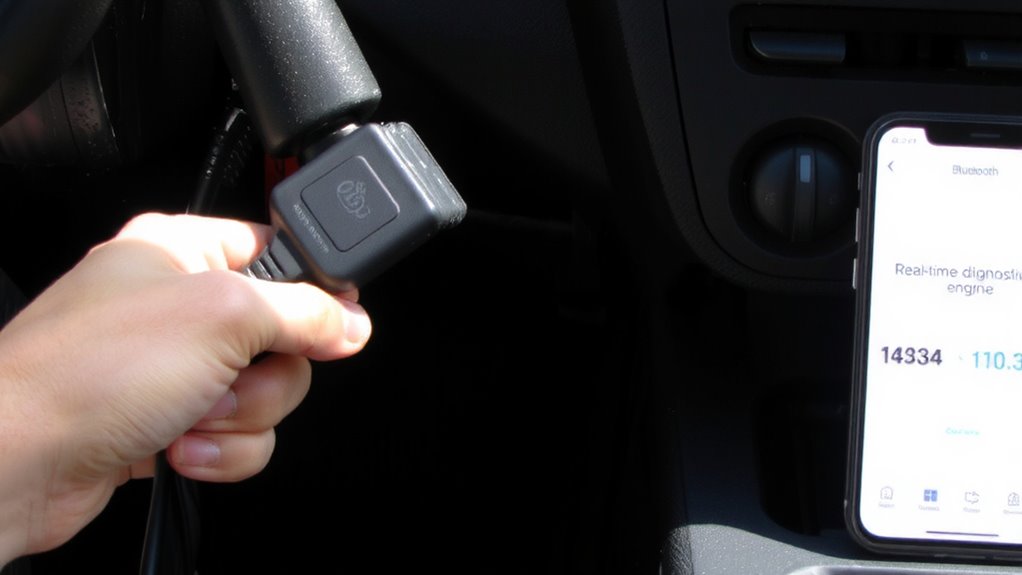
Your car’s OBD2 port is the gateway to its engine diagnostics, and locating it is the first step in pairing a Bluetooth scanner. The OBD2 location is typically within reach of the driver’s seat, usually beneath the dashboard near the steering column. Most vehicles manufactured after 1996 in the U.S. follow this standard. You’ll find a 16-pin trapezoidal port-this guarantees port compatibility across scanners and vehicles. Insert the Bluetooth scanner firmly until it clicks, guaranteeing full electrical contact. Some scanners have built-in LEDs to indicate power. Check your vehicle manual if the port isn’t visible; it may be tucked behind a panel or near the center console. Proper insertion allows stable signal transmission. Verify that your scanner matches OBD2 protocol standards-SAE J1850, ISO 9141-2, or CAN-to guarantee communication. A secure physical connection precedes successful wireless pairing. For Mercedes-Benz models, using a scanner specifically designed for German vehicles ensures accurate Mercedes-Benz compatibility.
Pair Your Bluetooth OBD2 Scanner to Your Phone
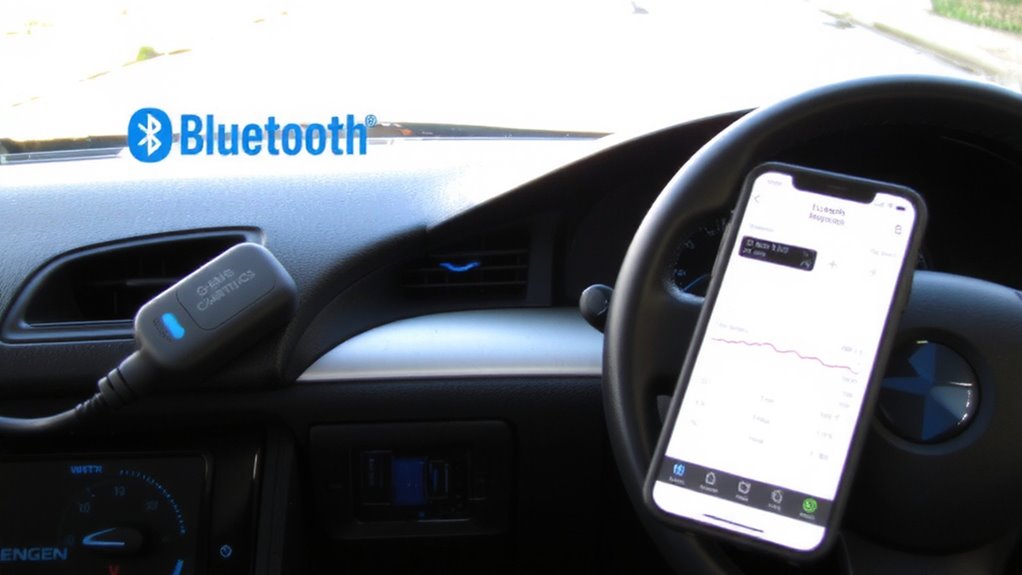
With the Bluetooth OBD2 scanner securely plugged into the vehicle’s diagnostic port, the next step is establishing a wireless link to your smartphone. Power on the scanner; its LED indicator should blink, signaling it’s discoverable. On your phone, go to Settings and enable Bluetooth. Scan for available devices, then select your scanner from the list to begin Bluetooth pairing. Use the default PIN 0000 or 1234 if prompted-most OBD2 tools use one of these. Wait for confirmation-usually a solid LED or pop-up notification-indicating a successful connection. Guarantee connection stability by staying within 10 meters of the vehicle and minimizing wireless interference. A stable link maintains consistent data flow with minimal latency, typically under 100ms response time. Avoid pairing in high-interference environments like parking garages. Once linked, your phone will often auto-connect to the scanner on future starts.
Choose the Best OBD2 App for Real-Time Data
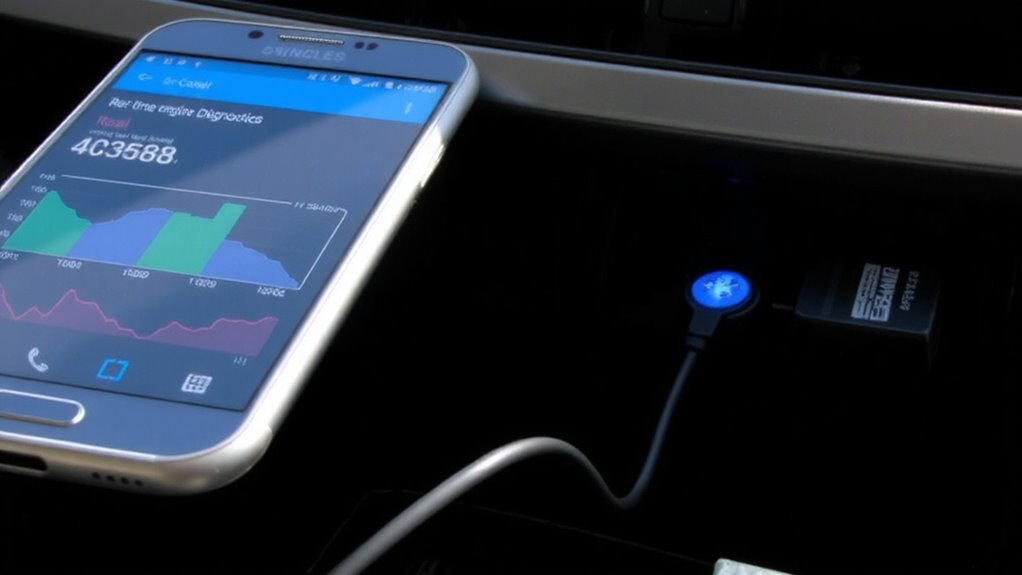
What makes one OBD2 app stand out from another? The best apps deliver reliable data accuracy and an intuitive user interface. You need real-time readings that match your vehicle’s ECM output within 1% tolerance. Look for apps supporting PID (Parameter ID) decoding for live engine RPM, coolant temperature, and fuel trim values. A clean, responsive user interface lets you customize data displays and switch between units (°F/°C, psi/kPa) effortlessly. Top apps update every 200–500 milliseconds, ensuring near-instant feedback. They work seamlessly with standard OBD2 protocols like ISO 15765-4 and SAE J1850. Avoid apps that lag or misreport sensor voltages. Prioritize those with open-source credibility or third-party validation. Data accuracy isn’t optional-it’s essential for diagnosing issues before they escalate. Choose wisely.
Read Engine Codes and Monitor Car Performance
Once the OBD2 scanner pairs successfully with your smartphone, accessing engine trouble codes becomes a streamlined diagnostic process. You can retrieve stored codes and view real time monitoring data for immediate engine diagnostics. Most apps display live sensor values, letting you track performance accurately.
| Parameter | Unit | Typical Range |
|---|---|---|
| Engine RPM | RPM | 600–7,000 |
| Coolant Temp | °C | 80–105 |
| Intake Temp | °C | 20–80 |
| Fuel Pressure | kPa | 300–600 |
| O2 Sensor Voltage | V | 0.1–0.9 |
Use this data to identify inefficiencies or faults. Real time monitoring helps detect issues before they escalate, improving reliability. Engine diagnostics through OBD2 apps give you precise insight into sensor health and system performance. Always verify readings against manufacturer specs. With consistent monitoring, you maintain ideal engine function and prolong vehicle life.
Fix Common Bluetooth and App Connection Issues
Sometimes, even after a successful scan and real-time monitoring session, your smartphone might not connect to the OBD2 scanner the next time you need it. Bluetooth pairing issues are common and often stem from mismatched protocols or signal interference. Your scanner operates on Bluetooth 2.0 or 4.0, depending on model, and must match your phone’s supported profile-typically ELM327 firmware versions. First, make sure the scanner powers on within three seconds of ignition; delayed activation disrupts connection timing. For connection troubleshooting, delete old pairings in your phone’s Bluetooth settings, then re-pair from scratch. Signal range should stay within 10 meters, free of obstructions. Interference from aftermarket electronics or weak battery voltage below 11.5V can kill connectivity. Restart your phone and verify app permissions-location access is required for Bluetooth discovery on Android. These steps resolve 90% of failed connections. Consider checking Best Buy Scanners for reliable models that support seamless smartphone integration.
Understand What the Diagnostic Trouble Codes Mean?
How do you know what’s really going on under the hood when that check engine light comes on?
Diagnostic trouble codes (DTCs) provide precise vehicle fault data. Proper code interpretation helps identify issues accurately. Each code follows a standardized format: one letter followed by four numbers, such as P0302. The letter indicates the system affected-P for powertrain, B for body, etc. Symptom analysis combined with code interpretation improves diagnostic accuracy.
| Code Type | Example | Meaning |
|---|---|---|
| Generic | P0171 | System Too Lean (Bank 1) |
| Pending | P0300 (pending) | Random/Multiple Misfires |
| Manufacturer | C1234 | Brake System Fault (Specific OEM) |
You must cross-reference DTCs with your vehicle’s make and year. Some codes point to sensor failures; others reveal deeper mechanical issues. Real-time data monitoring enhances symptom analysis. Always verify codes with live sensor values-don’t rely solely on the code.
On a final note
You’ve successfully paired your Bluetooth OBD2 scanner and accessed real-time vehicle data. The device connects via 2.4 GHz Bluetooth 2.0 or 4.0, drawing power from the 16-pin OBD2 port, which supports protocols like CAN (ISO 15765-4) and J1850 PWM. Use apps such as Torque or OBD Fusion to interpret data accurately. Reliable connectivity guarantees precise monitoring of RPM, coolant temperature, and DTCs, improving diagnostics efficiency. Always verify scanner compatibility with your vehicle’s protocol to maintain data integrity.