How to Re-Pair Bluetooth Devices After Resetting Your Car’s Infotainment System
After resetting your car’s infotainment system, you’ll need to re-pair your devices manually-factory resets erase all stored Bluetooth profiles and encryption keys. Power on the system fully, then go to Settings > Bluetooth and enable discovery mode. Make your smartphone discoverable within three feet. Select “Add New Device,” choose your phone from the list, and confirm the six-digit PIN shown on both screens. Pairing completes in 10–20 seconds with secure key exchange. Verify firmware is updated and avoid interference from metal interiors. Persistent issues may require clearing old devices or checking codec support. Further optimization steps reveal how to maintain stable, high-quality connections across multiple devices.
Notable Insights
- Power on the infotainment system completely and navigate to Settings > Bluetooth to prepare for pairing.
- Enable discovery mode on the car’s system and set your smartphone to discoverable within three feet.
- Select “Add New Device” on the infotainment screen and choose your phone from the detected devices list.
- Confirm the six-digit PIN displayed on both devices to complete secure pairing with encryption key exchange.
- Re-pair all devices after a factory reset, as nonvolatile memory wipes remove previous Bluetooth connections.
Prepare Your Car’s System for Bluetooth Pairing
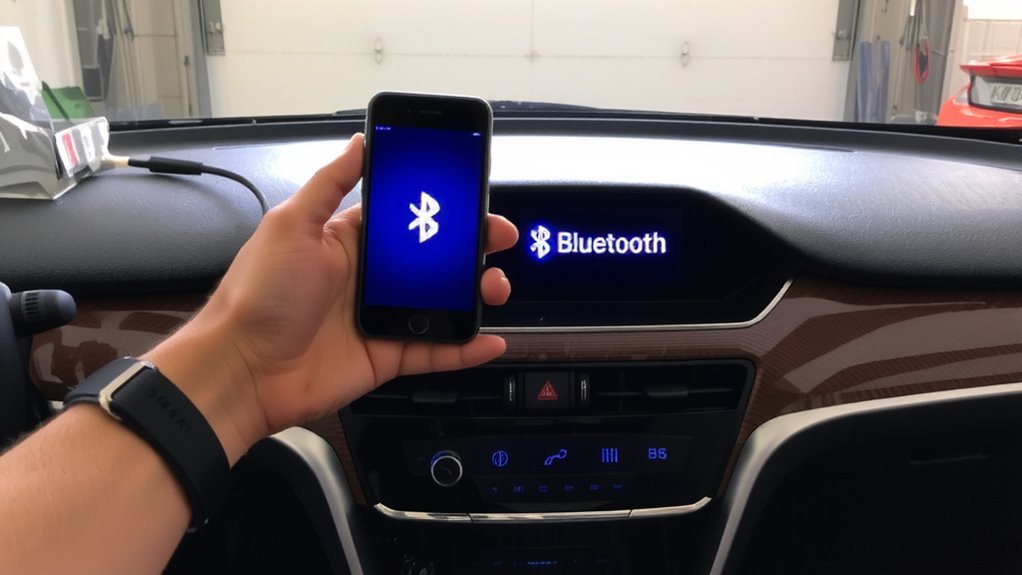
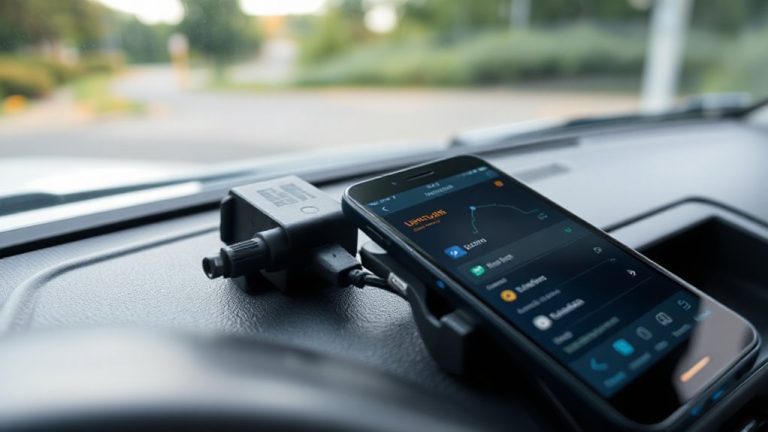
Before beginning the Bluetooth pairing process, make certain your car’s infotainment system is fully powered and in discovery mode. System readiness is critical-verify the screen displays the correct menu, typically under “Settings” > “Bluetooth.” Make sure the system firmware is up to date, as outdated versions can hinder connection stability. Most modern systems enter discovery mode automatically when prompted, but some require manual activation via a dedicated button or touchscreen toggle. Confirm device visibility by enabling Bluetooth on your smartphone and setting it to “visible” or “discoverable” for at least three minutes. This allows the car to detect and list your device. Avoid multiple device broadcasts nearby, as interference reduces visibility accuracy. Pairing works best within three feet of the infotainment unit. Once both system readiness and device visibility are confirmed, proceed without delay-delayed pairing may require restarting the process.
Pair Your Smartphone via Bluetooth After Reset
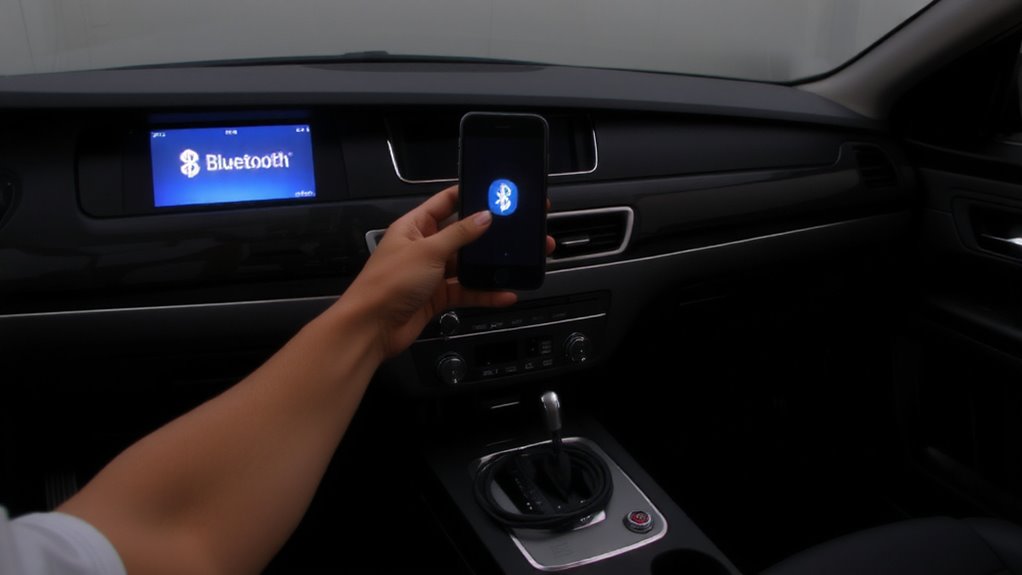
Now that your car’s infotainment system is ready and your smartphone is discoverable, you can initiate the pairing process. Navigate to the Bluetooth menu in your vehicle’s infotainment system and select “Add New Device.” Your car will scan for nearby devices; choose your smartphone from the list. Modern systems support Bluetooth 4.0 or higher, ensuring reliable device compatibility across iOS and Android platforms. During pairing, both devices exchange encryption keys to establish pairing security, protecting against unauthorized access. Enter the PIN if prompted-most systems auto-generate a six-digit code. Confirm it on both devices. Successful pairing typically takes 10–20 seconds. Once connected, enable audio streaming and contact syncing. Verify microphone permissions for hands-free use. The connection is now secure and functional for calls and media, maintaining stable performance within a 33-foot range.
Fix Common Bluetooth Connection Problems
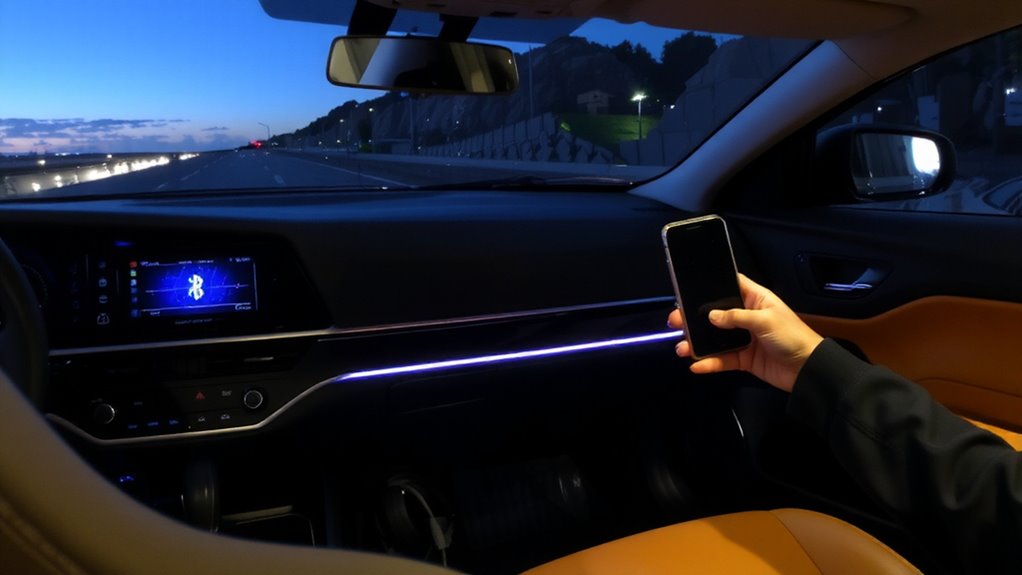
Why does your phone keep dropping the connection after pairing? Signal interference and poor device compatibility are often to blame. Bluetooth 4.2 and 5.0 standards support stable connections up to 33 feet, but metal car interiors can reduce effective range. Guarantee both your phone and infotainment system support Bluetooth A2DP for streaming audio-older devices might lack this profile, degrading audio quality. Check for software updates; manufacturers often release patches to fix connectivity bugs. Reset network settings on your phone to clear corrupted Bluetooth profiles. Avoid running multiple connected devices simultaneously-this overloads the system’s 2.4 GHz bandwidth. Device compatibility isn’t just about pairing-it affects stream stability and audio quality. If calls sound muffled, verify that the infotainment unit supports the Hands-Free Profile (HFP) 1.7 or higher. Proper codec support, like SBC or AAC, also guarantees smoother playback.
Connect Other Devices Like Tablets & Watches
What if your car could sync with more than just your phone? You can connect tablets and smartwatches easily, provided there’s proper device compatibility. Most modern infotainment systems support Bluetooth 4.0 or higher, allowing stable pairing with non-phone devices. Check your car’s manual for supported profiles-A2DP for audio streaming, HFP for calls, and GATT for wearables. Activate pairing mode in your car’s Bluetooth settings, then enable Bluetooth on your tablet or watch. Select your vehicle from the device list. Some systems limit active connections, so only one tablet or watch pairs at a time. These alternative connections let you stream audio or receive notifications without using your phone. Not all features work uniformly across brands-Apple Watch and Android Wear have varying integration levels. Always confirm firmware updates for both car and device to guarantee peak performance.
Keep Your Bluetooth Stable After a Reset
After syncing tablets or smartwatches to your car’s infotainment system, maintaining a reliable Bluetooth connection becomes just as important-especially after a system reset. Keep your phone within 3 feet of the console to guarantee peak signal strength; obstructions like metal cases or thick bags degrade performance. Bluetooth 4.2 and later support a theoretical range of 33 feet, but real-world use in vehicles often cuts that to 10–15 feet due to interference. Maintain line-of-sight when possible. Audio latency should stay under 200 milliseconds for seamless playback; delays beyond 300ms disrupt voice-video sync. Use Bluetooth codecs like AAC or SBC-the car’s supported profile determines compatibility and quality. Avoid pairing more than five devices; stored connections can overload memory and reduce responsiveness. Re-pair problematic devices instead of toggling Bluetooth on and off. Firmware updates often fix connectivity bugs-check your car manufacturer’s site quarterly.
When Bluetooth Fails: Check the Manual or Call Support
If the connection still won’t establish despite correct pairing steps, your car’s official manual is the most reliable source for model-specific troubleshooting. Bluetooth malfunctions can stem from software bugs, outdated firmware, or incompatible device profiles. Manuals provide exact menu paths, correct PIN formats (often 0000 or 1234), and supported Bluetooth versions (typically 4.0 to 5.3). They also list maximum paired device limits-usually 5 to 10 devices-helping avoid memory overflow. User frustration often peaks when repeated attempts fail without clear feedback. Most infotainment systems emit coded error tones or display error codes like “ERR 10” or “Pairing Failed.” These are documented in manuals. When self-troubleshooting fails, contact manufacturer support. Trained technicians access diagnostic logs and can reset internal Bluetooth modules remotely. They verify antenna signal strength (measured in dBm) and update firmware over secure channels. Skip guesswork-use the manual or call support.
Why Bluetooth Pairings Vanish After a Reset
Even though you’ve paired your phone successfully before, a factory reset wipes the infotainment system’s nonvolatile memory, including all stored Bluetooth profiles and pairing keys. This return to factory defaults clears user data just like formatting a hard drive. Without those saved encryption keys, your phone and car can’t recognize each other. Temporary glitches like Bluetooth interference won’t cause this-it’s an intentional reset behavior.
| System State | Memory Cleared | Device Recognition |
|---|---|---|
| Normal Operation | No | Paired devices recognized |
| After Reset | Yes | No paired devices stored |
| Re-pairing Phase | Partial | Temporary pairing in progress |
| Fully Restored | No | New profile saved securely |
Restoring factory defaults guarantees a clean software state, eliminating corrupted settings that might cause Bluetooth interference or connection drops. Re-pairing rebuilds trust between devices through secure key exchange.
On a final note
You’ve restored your car’s infotainment system and re-paired your devices. Bluetooth connections reset because factory defaults erase stored MAC addresses and encryption keys. Modern systems use Bluetooth 4.2 or 5.0, with pairing ranges up to 33 feet. For reliable performance, guarantee devices support HFP 1.7 and AVRCP 1.6. Stable connections depend on firmware updates and low electromagnetic interference. Always verify pairing in the settings menu.