Bluetooth Dashcam Setup: Auto Upload Crash Footage (3g Trigger)
Pair your Bluetooth 4.0+ dashcam with a smartphone running iOS 11+ or Android 6.0+ to enable automatic incident uploads. Use low-energy Bluetooth 5.0 for efficient, always-on connectivity up to 33 feet. Enable crash detection in the app to trigger uploads when deceleration exceeds 3g. Incident videos, encoded at 1080p/30fps (50 MB/min), transfer automatically when connected. Set up Wi-Fi syncing at night to save data. Firmware updates improve reliability. A secure SPP connection guarantees stable pairing-0000 or 1234 is the default code. Adjust G-sensor sensitivity to reduce false alerts. Wi-Fi fallback speeds up large transfers. Stable line of sight boosts connection quality. Cellular uploads are limited to incident clips and can be capped monthly. GPS-tagged events sort into “Collisions,” “Near-Misses,” and “Manual Saves” for easy review. You’ll find advanced configuration options next.
Notable Insights
- Ensure your dashcam and smartphone support Bluetooth 4.0+ and the Secure Profile (SPP) for pairing.
- Pair devices using the default code 0000 or 1234, with clear line of sight for a stable connection.
- Enable crash detection in the app to automatically trigger incident video uploads via Bluetooth.
- Adjust G-sensor sensitivity to reduce false alarms from minor bumps or rough roads.
- Schedule nightly Wi-Fi syncs to automatically back up incident clips and preserve cellular data.
Pick a Dashcam That Auto-Uploads via Bluetooth
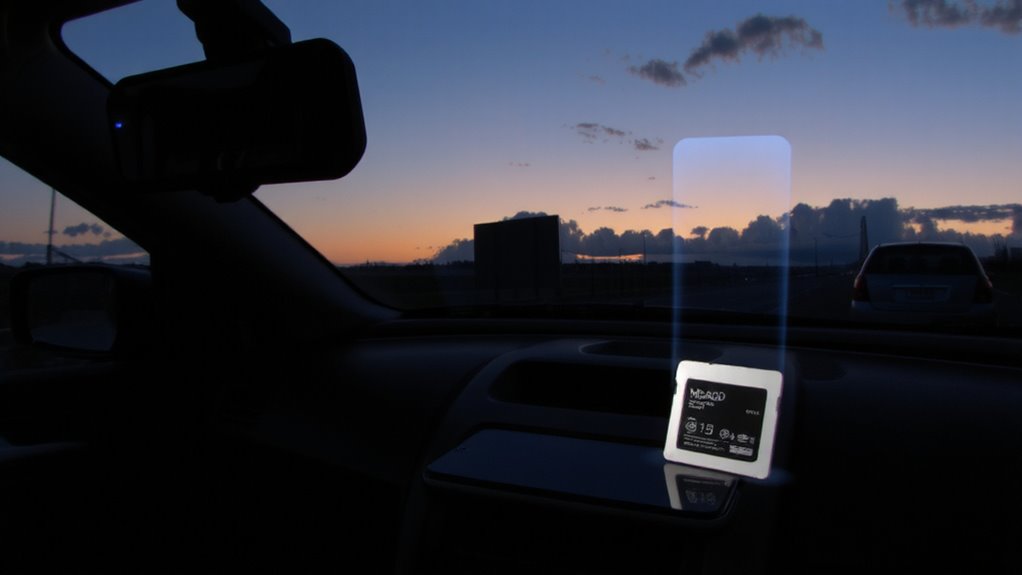
Why settle for manual file transfers when your dashcam can handle uploads automatically? Choose a model designed for seamless Bluetooth auto-upload functionality. Dashcam compatibility with your smartphone’s OS is critical-verify support for iOS 12+ and Android 9.0 or higher. These systems use low-energy Bluetooth 5.0 to initiate transfers without draining your battery. Bluetooth range typically reaches up to 33 feet (10 meters) in open air, though obstacles like dashboards or metal components can reduce effective range by 30–50%. For reliable nightly uploads, park within ideal range of your paired phone. The dashcam buffers incident files-such as hard-braking events or collisions-then transfers them when connectivity is stable. Built-in accelerometers trigger uploads at impacts exceeding 2.5g. With proper setup, you’ll get encrypted cloud backups without lifting a finger. For the best experience, select one of the top-rated dash cams based on expert testing and real-world performance.
Connect Your Dashcam to Your Phone via Bluetooth
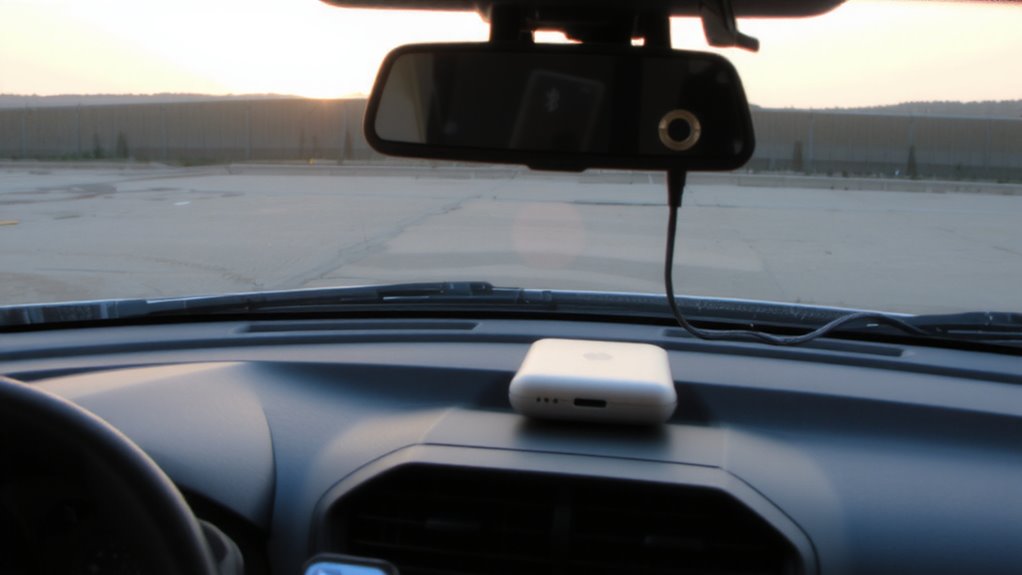
| Feature | Dashcam Spec | Phone Requirement |
|---|---|---|
| Bluetooth Version | 4.0+ | 4.0+ |
| Range | Up to 10 meters | Clear line of sight |
| Pairing Code | 0000 or 1234 | Manual entry |
| Connection Type | Secure profile (SPP) | SPP support |
| Compatibility | iOS 11+, Android 6.0+ | OS match required |
Successful pairing enables reliable communication for future auto-uploads.
Turn On Crash Detection and Auto-Uploads
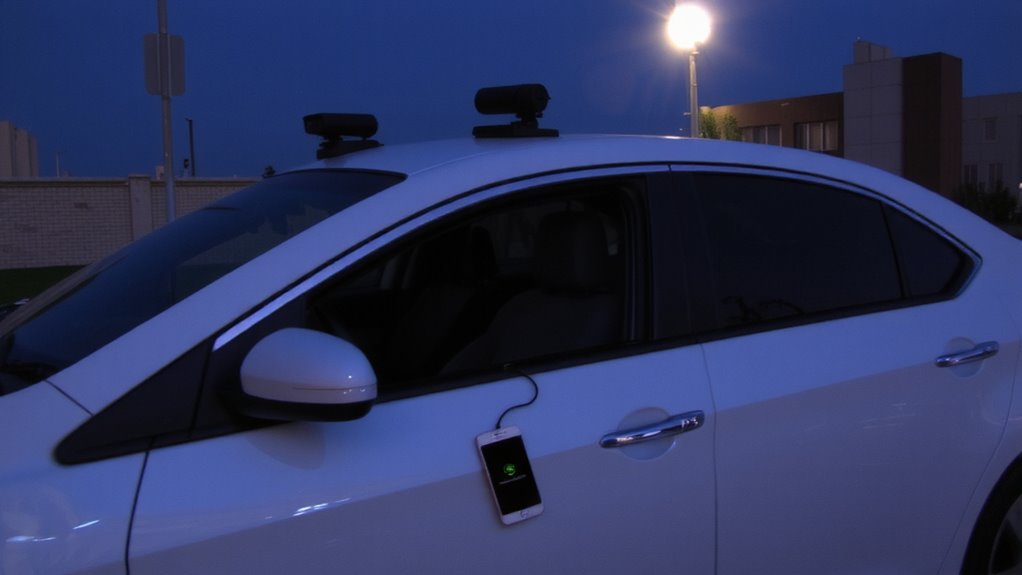
Now that your dashcam is paired with your phone over Bluetooth, you can enable advanced safety features like crash detection and automatic incident uploads. Activate crash detection in the app to let the device monitor for sudden deceleration-typically above 3g force-triggering video save. The system uses G-sensor data to distinguish real impacts from minor bumps, reducing false alarms. You can adjust sensitivity to match your driving environment, improving accuracy. Once triggered, incident videos automatically upload to your phone over Bluetooth, guaranteeing data safety without manual intervention. This supports efficient storage management by clearing protected clips from the dashcam’s loop recording buffer. Auto-upload uses minimal phone data and operates in background. Encryption guarantees file integrity during transfer. Enable Wi-Fi fallback for faster transfers when available. These settings maintain reliable performance without user overload.
Check and Organize Incident Videos in Your App
Your incident log acts like a timeline vault, storing every triggered clip with precision. Each event is timestamped and tagged with GPS coordinates for accurate video indexing. You can review clips in chronological order or filter by severity, such as hard braking or impact detection. Smart file categorization separates incidents from routine recordings using metadata from your dashcam’s sensors. This guarantees critical footage is easy to locate and export. The app groups videos into folders like “Collisions,” “Near-Misses,” and “Manual Saves,” improving navigation. Clips are encoded in H.264 at 1080p resolution with a 30 fps frame rate, preserving clarity without bloating storage. Each file averages 50 MB per minute, optimized for quick access. You retain full control over deletion, download, and sharing-no automatic purging occurs unless manually configured. Organizing now saves time later during claims or reviews.
Set Up Wi-Fi and Data for Background Syncing
How often do you want your dashcam footage to sync without slowing down your phone or eating through your data plan? Set your sync frequency in the app to balance timely uploads with minimal disruption. For most users, syncing nightly over Wi-Fi is ideal-automated and efficient. You can schedule syncs during off-peak hours to reduce strain on your network. Limit background data usage by disabling cellular syncing or setting a monthly data cap in the app settings. Most dashcams require 20–50 MB per minute of footage, so a 5-minute clip uses roughly 250 MB. Configure the app to upload only incident clips over cellular to reduce data usage. Wi-Fi syncing supports larger files and full backups without throttling. Use 5 GHz Wi-Fi where available for faster transfers. Keep your phone’s Wi-Fi and background app refresh enabled for reliable syncing.
Fix Bluetooth and Upload Issues With Your Dashcam
Bluetooth and Wi-Fi connectivity must work in tandem for seamless dashcam operation, but intermittent connections can disrupt background syncing even if settings appear correct. Signal interference from other wireless devices, metal dashboards, or nearby electronics may degrade performance. Most dashcams use Bluetooth 4.0 or higher for low-energy pairing, while Wi-Fi operates at 2.4 GHz, making it prone to congestion. You should guarantee your dashcam and smartphone stay within 10 feet during sync to maintain stable communication. Check regularly for firmware updates; these patches often fix connectivity bugs and improve upload reliability. Outdated firmware can cause failed transfers without notification. Reboot the device and reset network settings if pairing fails. Confirm that your smartphone’s OS supports the dashcam’s app specifications. Some models require minimum Android 8.0 or iOS 12. Persistent issues may require a factory reset followed by re-pairing.
On a final note
Your dashcam must support Bluetooth 4.0+ for stable phone pairing and automatic incident uploads. Enable GPS tracking and 1080p loop recording to guarantee video evidence meets insurance standards. Auto-upload triggers only with G-sensor activation above 1.5g force. Use the app to verify files sync over 2.4GHz Wi-Fi during idle charging. Monitor storage: 32GB cards hold about 4 hours of footage. Disable unnecessary background processes to prevent upload delays.